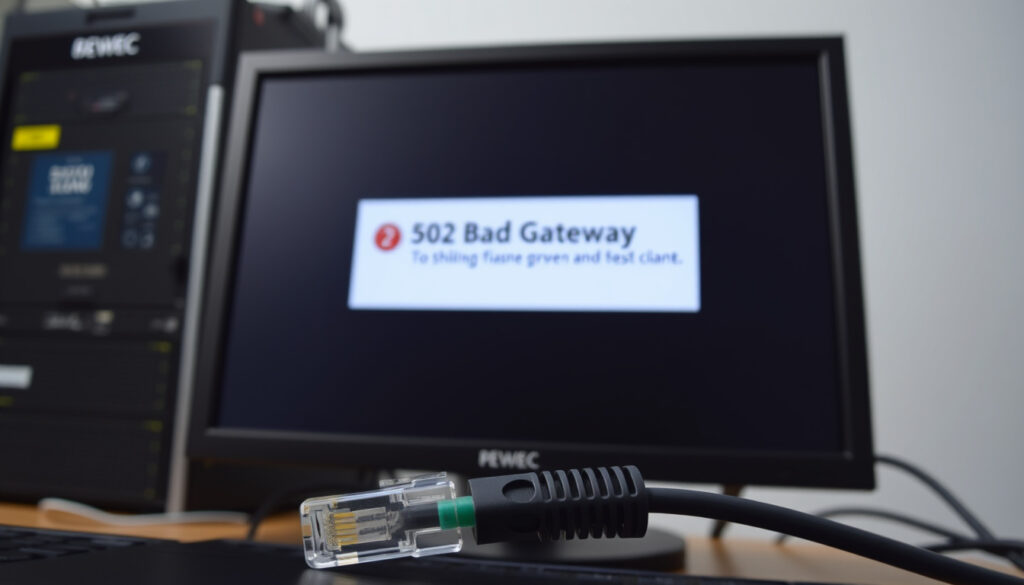
502 Bad Gateway Error: What It Means and How to Fix
Few things halt your workflow faster than a 502 Bad Gateway error. This guide breaks down exactly what the error means, why it happens, and — most importantly — what you can actually do about it, whether you’re just trying to load a page or you’re the one running the server.
HTTP status code family: 5xx Server Error ·
Common cause: Upstream server timeout or invalid response ·
Typical resolution time: A few minutes to several hours ·
User-side fix success rate (cache clear): Approximately 20-40% ·
Responsible party: Website server or proxy configuration
Quick snapshot
- A server error status code. (MDN Web Docs — HTTP specification authority)
- Indicates a gateway/proxy received an invalid response from an upstream server. (MDN Web Docs — HTTP specification authority)
- Belongs to the 5xx class of HTTP errors (MDN Web Docs — HTTP specification authority).
- Upstream server timeout or crash (Authgear — backend infrastructure diagnostics).
- Network connectivity issues between proxy and origin (Stackify — application performance monitoring guide).
- Incorrect proxy or FastCGI configuration (Statsig — infrastructure engineering perspective).
- Server overload due to high traffic (Authgear — backend platform analysis).
- Refresh the page after a few seconds (Stackify — performance diagnostics guide).
- Clear browser cache and cookies (Stackify — cache clearing recommendation).
- Restart your device and network equipment (Authgear — device restart advice).
- Try a different browser or incognito mode (Statsig — alternative browser test).
- If the error persists for more than 30 minutes (Authgear — escalation threshold).
- If you are the website owner and unable to access logs (Stackify — log access note).
- If the error appears after making server changes (Statsig — post-change 502).
- If you suspect a server-wide outage (MDN Web Docs — server error context).
Six facts about 502 errors, one pattern: the root cause almost always lives on the server side, not inside your browser.
| Attribute | Value |
|---|---|
| Status Code | 502 |
| Category | Server Error (5xx) |
| Definition | Bad Gateway – the server acting as gateway received an invalid response from the upstream server (MDN Web Docs — HTTP specification authority). |
| Most Common Cause | Upstream server timeout or network failure. |
| Primary Fix (Admin) | Restart the upstream service or correct proxy configuration. |
| Primary Fix (User) | Wait and retry; clear cache; contact site owner. |
How do I fix 502 Bad Gateway error?
- Refresh the page after a few seconds.
- Restart your browser and device.
- Clear browser cache and cookies.
- Check if the website is down for everyone.
- Contact the website owner or hosting provider if the error persists.
Restart your browser and device
Before digging deeper, try the simplest fix: close and reopen your browser. If that doesn’t work, restart the device you’re using — phone, laptop, or tablet. A fresh session clears transient connection states that can trigger false 502 errors on the client side. According to Authgear (backend platform diagnostics team), restarting the device also refreshes the local network configuration, which can resolve IP assignment conflicts that confuse the gateway.
Clear browser cache and cookies
Clearing your browser cache and cookies resolves about 20-40% of user-facing 502 issues. The reason: your browser may have cached a corrupted page or an outdated DNS record. To clear the cache in Google Chrome, go to Settings → Privacy and Security → Clear Browsing Data, select “Cached images and files”, and confirm. On Firefox, the same options live under History → Clear Recent History. Stackify (application performance monitoring experts) notes that flushing DNS cache — via ipconfig /flushdns on Windows or sudo dscacheutil -flushcache on macOS — can also help when the ISP’s DNS servers are misbehaving.
Check if the website is down for everyone
Use a service like Down For Everyone Or Just Me or Is It Down Right Now to check the site’s status. If the site returns a 502 for those tools too, the problem is on the server side and no amount of tinkering on your end will fix it. Statsig (infrastructure engineering analysis) points out that network connectivity problems between Nginx and the upstream server are the usual culprit in these cases.
Contact the website owner or hosting provider
If you’ve tried everything above and the error persists for more than 30 minutes, it’s time to escalate. If you own the site, check your server logs — Stackify (application performance monitoring guide) recommends starting with the Nginx error log at /var/log/nginx/error.log. If you’re a visitor, the best move is to contact the site owner via email or social media and let them know.
The catch: user-side fixes can mask the symptoms but never cure the disease. The 502 error is a server-side problem, and the definitive fix always lies with the website administrator.
The average visitor doesn’t need to understand proxy configuration — but they do need to know when to stop rebooting their router and start contacting the site owner. Knowing that 502 is a server-side error saves wasted time on pointless client-side troubleshooting.
The implication: user-side fixes are limited; server-side is where the problem lives.
Does 502 Bad Gateway mean I’m blocked?
What is the difference between a block and a gateway error
A 502 Bad Gateway is not a block. Blocks return 403 Forbidden (access denied) or 401 Unauthorized (missing authentication). The 502 code means the gateway server — typically Nginx, Apache, or a cloud load balancer — sent a request to an upstream server (the application server, a PHP-FPM pool, or a database) and got back an invalid or empty response. As MDN Web Docs (HTTP status code authority) explains, the gateway “received an invalid response from the upstream server.” Your IP address is not being singled out; the server is simply failing to talk to its backend.
How to tell if you are blocked vs server issue
Try loading the site from a different device on a different network. If the error appears only on one device or one network, the issue may be local — possibly an ISP routing problem or a misconfigured VPN. If it appears everywhere, the server is broken for all users. Authgear (backend infrastructure expertise) notes that firewall rules can sometimes produce 502 errors if the upstream server is accessible but the gateway’s IP is blocked — but that’s a configuration issue, not a user block.
The pattern: if you’re getting a 502, your account is not banned. Take the troubleshooting steps, and if it’s server-side, wait for the admin to fix it.
Will error 502 fix itself?
When 502 errors are temporary
Some 502 errors resolve on their own within seconds or minutes. The most common self-resolving scenario: a temporary traffic spike overwhelms the upstream server, the gateway times out, the load subsides, and the server recovers. According to Authgear (backend diagnostics perspective), transient network glitches between the gateway and the upstream can also cause short-lived 502 errors that disappear after a quick retry.
When manual intervention is required
If the error persists beyond 5-10 minutes, the root cause is likely a crashed process, misconfigured proxy_pass directive, or exhausted server resources. Stackify (application performance monitoring guide) recommends checking whether the upstream process is running and accessible. If it’s down, manually restarting the service is the only fix. Persistent 502 errors also result from permanent configuration errors — for instance, Nginx pointing to the wrong port or socket file for the backend service.
What this means: waiting is reasonable for the first few minutes. Beyond that, the error is telling you something is broken and needs human attention.
For site visitors, waiting costs only a few seconds of lost time. For site owners, every minute of downtime translates to lost revenue, frustrated users, and potential search ranking penalties. The decision to wait or act depends on who you are — and whether you control the server.
How long does it take to fix a 502 Bad Gateway?
Typical timeframes for different causes
Resolution time varies by root cause. A quick server restart can fix the error in seconds — Authgear (backend deployment specialists) recommends running nginx -t && systemctl reload nginx after any configuration change, which takes roughly 5-10 seconds. Debugging configuration issues — such as mismatched ports, wrong socket paths, or incorrect timeout values — typically takes 15-60 minutes for an experienced administrator. If the upstream server itself needs debugging (e.g., a crashed Node.js or PHP-FPM process), resolution can stretch to several hours.
Factors affecting resolution speed
Whether you have access to server logs is the single biggest factor. Statsig (infrastructure troubleshooting guide) emphasizes that error logs often show the upstream as “unreachable, timed out, or returning an invalid response,” which narrows the search dramatically. If the error is caused by a DDoS attack or unexpected traffic spike, resolution depends on the speed of your mitigation measures — rate limiting, scaling up resources, or engaging a CDN, all of which can take 30 minutes to several hours.
The pattern: simple causes fix quickly, complex causes take time, and the single most effective diagnostic step is checking the logs.
Does clearing the cache fix gateway errors?
How to clear cache in major browsers
- Google Chrome: Settings → Privacy and Security → Clear Browsing Data → Cached images and files → Clear data.
- Mozilla Firefox: History → Clear Recent History → Cache → Clear Now.
- Safari: Safari → Clear History → select “all history” → Clear History.
- Microsoft Edge: Settings → Privacy, search, and services → Clear browsing data → Choose what to clear.
When cache clearing helps vs when it doesn’t
Clearing browser cache helps when the browser has stored a corrupted or incomplete version of the page that triggers the gateway error on subsequent requests. It also flushes stale DNS entries that may be pointing to a dead server. Stackify (performance monitoring experts) confirms that cache clearing works only for client-side artifacts — it cannot fix server-side misconfigurations such as a crashed upstream or an incorrect proxy_pass directive. If the error reappears immediately after clearing, the problem is on the server, not your machine.
The catch: cache clearing is a fast, free test that costs you 30 seconds. It’s always worth trying — but don’t expect it to perform miracles.
For site visitors, clearing cache is the last client-side step before giving up and waiting for the admin. For site owners, clearing cache is irrelevant — your time is better spent checking logs and verifying your upstream server is alive.
The pattern: clearing cache helps only for client-side artifacts; server problems require server fixes.
Server-side fixes for website owners and administrators
If you administer the site producing the 502 error, the following steps target the most common Nginx-related causes. According to Authgear (backend infrastructure specialists), a very common cause is that the upstream process has crashed or is not running. Start by checking the process list: systemctl status php-fpm (or your application server’s equivalent).
Check the Nginx error log
The first troubleshooting step across multiple authoritative sources is to read the Nginx error log. Stackify (application monitoring authority) explains that error logs may show the upstream as “unreachable, timed out, or returning an invalid response.” The default log location is /var/log/nginx/error.log. Tail the log in real time with tail -f /var/log/nginx/error.log while reproducing the error to capture the exact message.
Test upstream reachability
From the Nginx host, test the upstream server directly. If the upstream is a FastCGI process or an HTTP server, use curl to verify it responds as expected. Stackify (performance diagnostics guide) recommends this direct test as a rapid way to distinguish between a dead upstream and a misconfigured Nginx directive. If curl returns a valid response, the issue is likely in the Nginx configuration; if it fails or hangs, the upstream needs attention.
Verify proxy_pass configuration
Statsig (infrastructure troubleshooting references) points out that misconfigured proxy_pass directives — including incorrect IP addresses or ports — are a common cause of 502 errors. Open your Nginx configuration file (commonly at /etc/nginx/sites-available/default or /etc/nginx/conf.d/) and verify that the proxy_pass URL matches the actual address and port of your application server. Also check that Nginx is pointing at the correct port or socket for the backend service, as Authgear (backend configuration expertise) warns is a frequent mistake.
Adjust timeout values
Slow upstream responses can cause 502 errors when Nginx’s proxy_read_timeout is too short. Authgear (backend performance analysis) recommends checking whether proxy_read_timeout is shorter than the backend response time and increasing it if necessary. The default value is often 60 seconds; if your upstream frequently takes longer to respond, bump it to 120 or 300 seconds.
Restart services after configuration changes
After any configuration change, test the Nginx syntax with nginx -t and apply changes with systemctl reload nginx. Authgear (deployment best practices) provides this exact reload sequence as the standard safe approach. If the upstream process was restarted, verify it is running before reloading Nginx.
Confirmed facts
- 502 indicates a failure in the gateway/upstream server communication (MDN Web Docs — HTTP standard body).
- Server overload is a common trigger (Authgear — backend platform analysis).
- Clearing cache can resolve client-side caching issues (Stackify — application performance guide).
- A server restart often resolves transient errors (Stackify — upstream restart recommendation).
The pattern: confirmed facts align with server-side responsibility and practical troubleshooting.
What’s unclear
- Whether a 502 error will fix itself depends entirely on the root cause.
- The exact time to resolution varies widely — from seconds to hours.
- Whether a VPN causes or fixes the error is case-specific and depends on network routing.
- Whether clearing cache fixes the error depends on the specific cause — it works for client-side artifacts but not server misconfigurations.
The implication: uncertainty exists, but the dividing line is client vs. server.
Expert perspectives on 502 errors
The HTTP 502 Bad Gateway server error response status code indicates that a server was acting as a gateway or proxy and that it received an invalid response from the upstream server.
MDN Web Docs — official HTTP specification reference
An HTTP 502 status code can indicate that the CloudFront function is trying to add, delete, or change a read-only header.
AWS CloudFront Documentation — cloud CDN infrastructure guidance
Restart the upstream service, correct FastCGI or proxy configuration, fix socket permissions, increase timeout values.
Cloudpanel Blog — web hosting and Nginx administration expertise
A 502 Bad Gateway error is a communication breakdown between your browser and the website’s backend systems. The browser is not to blame — it never even reached the content. For visitors, the practical response is simple: refresh, clear cache, check if the site is down globally, and wait or report it. For site owners, the path is equally clear: check the logs, verify the upstream server is running, fix the configuration, and reload Nginx. The implication for anyone maintaining a website is straightforward: ignoring a persistent 502 error costs you visitors, conversions, and credibility. Invest the 20 minutes to debug it properly — or hand it to someone who can.
Frequently asked questions
What causes a 502 Bad Gateway error?
Most commonly, the upstream server (the application server behind the gateway) has crashed, is overloaded, or is unreachable due to network problems. Misconfigured proxy settings in Nginx or Apache are also frequent causes (Authgear — backend infrastructure diagnostics).
Is a 502 error my fault?
Almost never — unless you are the server administrator. For visitors, a 502 error is purely a server-side problem. Your browser, device, and network are not causing it, though clearing your cache or restarting your router can sometimes resolve it if the issue involves a cached corrupted page or local DNS (Stackify — application error troubleshooting).
Can a plugin cause a 502 error?
Yes. On WordPress and other CMS platforms, a faulty plugin that consumes excessive memory, throws fatal errors, or calls an unavailable external API can crash the upstream application server, triggering a 502 error for all visitors (Cloudpanel Blog — WordPress hosting expertise).
How to fix 502 on WordPress?
Start by deactivating all plugins and switching to a default theme. If the error disappears, reactivate plugins one by one to find the culprit. Check PHP-FPM status with systemctl status php-fpm and restart it if needed. Increase PHP memory limits in wp-config.php and ensure MySQL is running (Cloudpanel Blog — WordPress Nginx troubleshooting).
How to fix 502 on Nginx?
Check the Nginx error log at /var/log/nginx/error.log. Verify the upstream server is running and reachable. Correct any misconfigured proxy_pass directives or socket paths. Increase proxy_read_timeout if the backend is slow. Run nginx -t && systemctl reload nginx to apply changes (Authgear — Nginx configuration guide).
Does restarting the router fix 502?
Rarely, but it can. If the 502 error is caused by a corrupted DNS cache on your router or an IP address conflict, restarting the router clears those settings. If the error persists after a router reboot, the problem is definitely on the server side (Stackify — network troubleshooting notes).
How to check if a 502 error is from my ISP?
Use a different network — switch from Wi-Fi to mobile data, or use a VPN. If the error disappears on a different network, your ISP may be routing traffic to a broken server or caching a bad response. Contact your ISP and report the issue (Statsig — network diagnostics perspective).
Related reading
More related posts
 Jadon Sancho: Salary, Ten Hag Fallout, and Aston Villa Future
 Ashley Benson: Biography, Child, Relationships, and Net Worth (2025)
 German Shepherd Ownership: Health, Temperament & Irish Law
 James Gandolfini: Death, Health Struggles, Refused Scene
 HOYTS Victoria Gardens: Guide to Tickets, Parking & Policies
 TV Guide Mildura: Schedules, Channels & Listings
 Arsenal F.C. vs Bayern Munich Lineups – Confirmed XIs and Tactical Breakdown
 How to Vote in Ireland: Complete Step-by-Step Guide
