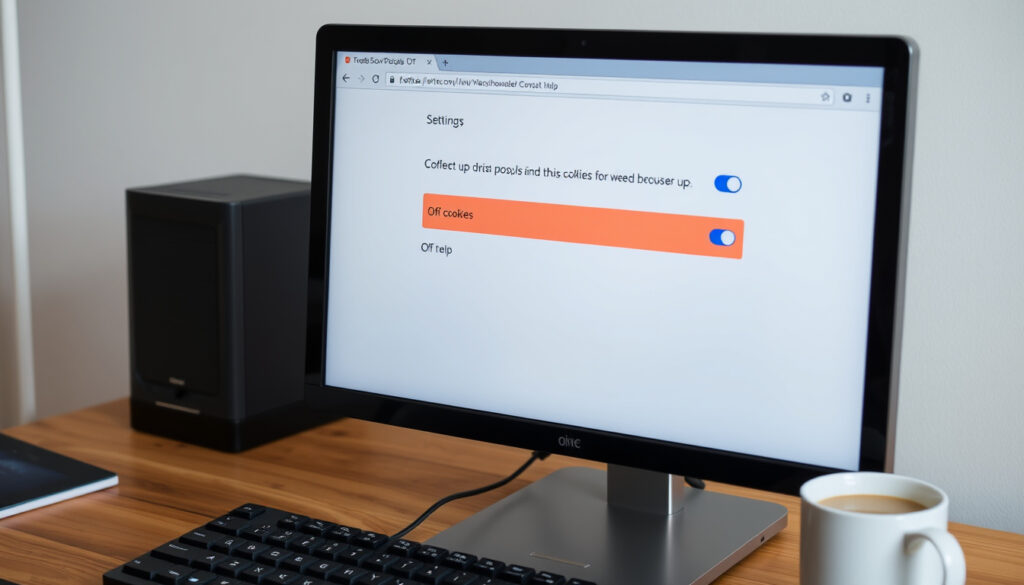
How to Disable Cookies in Browser: Step-by-Step Guide
Disabling or limiting cookies gives you more control over your privacy, but it comes with trade-offs for site functionality. This browser-by-browser guide explains how to manage cookie settings in 2025 and the real-world effects you need to know.
Websites using cookies: 95% of top 1000 sites (HTTP Archive 2024) ·
Major browsers with cookie controls: 5 (Chrome, Edge, Safari, Firefox, Android) ·
Chrome’s third-party cookie phase-out: started 2024, planned completion 2025 ·
Average cookies per page: 20
Quick snapshot
- Cookies can be disabled in all major browsers via settings (Google Account Help)
- Blocking cookies improves privacy but affects website functionality (All About Cookies)
- Deleting cookies logs you out of websites (USA.gov)
- Exact impact on specific websites may vary
- Future browser changes (e.g., Chrome’s third-party cookie removal) may alter options
- Chrome’s third-party cookie phase-out began in 2024, with full removal planned by 2025 (Google Privacy Sandbox)
- Safari has blocked third-party cookies by default since 2020 (Google Account Help)
- Browser cookie controls are likely to become stricter; users should revisit privacy settings after major updates
- Privacy regulations (e.g., GDPR, CCPA) will continue to influence cookie policies
The table below outlines the basic attributes of cookies and how they behave across browsers.
| Attribute | Value |
|---|---|
| Definition | Small text files stored by websites on your device |
| Purpose | Remember preferences, login status, and track browsing behavior |
| Types | First-party (same site) and third-party (tracking across sites) |
| Default setting | Most browsers allow all cookies by default |
| Blocking options | Block all, block third-party only, or block in private mode |
| Websites impacted by cookie blocking | Estimate: 95% of top 1000 sites set cookies (HTTP Archive 2024) |
How Do I Disable Cookies?
Every major browser includes a built-in setting to turn off cookies. The exact location varies, but the general pattern is the same: open the browser’s settings menu, find the privacy or security section, and look for cookie controls. You can typically choose between blocking third-party cookies only or blocking all cookies entirely.
For most users, blocking third-party cookies is the sweet spot: it stops cross-site tracking without breaking logins on the sites you visit directly.
What browsers support cookie disabling?
- Google Chrome – Settings > Privacy and security > Third-party cookies (Google Account Help)
- Microsoft Edge – Settings > Cookies and site permissions > Manage and delete cookies (All About Cookies)
- Apple Safari – Preferences > Privacy > Block all cookies or Prevent cross-site tracking (All About Cookies)
- Mozilla Firefox – Options > Privacy & Security > Cookies and Site Data (All About Cookies)
- Android Chrome – Menu > Settings > Site settings > Third-party cookies (CookieScript Knowledge Base)
- iPhone Safari – Settings > Safari > Block All Cookies and Prevent Cross-Site Tracking (USA.gov)
Is there a global setting?
No browser offers a single system-wide “disable all cookies” switch that applies to every app on your device. Each browser and platform has its own cookie controls. On Android, for instance, cookie settings live inside the browser’s site settings rather than a global privacy toggle (CookieScript Knowledge Base).
The pattern: while any browser gives you control, you must configure each one separately if you use multiple browsers on the same device.
How to Permanently Block Cookies?
“Permanently block” means the browser will refuse to store any new cookies — or block third-party cookies — until you change the setting again. This is a preference, not a one-time action.
Block all cookies vs block third-party only
- Block all cookies – No cookies saved from any site. This will break many websites: you’ll be logged out constantly, shopping carts may empty, and some pages may not load properly.
- Block third-party cookies only – The site you’re visiting can still store cookies, but trackers from other domains (ad networks, analytics) are blocked. This is the recommended setting for privacy without breaking basic functionality (Google Privacy Sandbox).
In Chrome, you can also block all on-device site data via chrome://settings/content/siteData (Google Privacy Sandbox). Edge and Firefox offer similar granularity.
Blocking all cookies will make many sites inconvenient or unusable. The trade-off: maximum privacy vs. a degraded browsing experience.
The implication: blocking all cookies is best reserved for high-privacy scenarios where convenience is secondary.
Is It Good to Disable Cookies?
That depends on what you value more: privacy or convenience. Here’s the breakdown.
Upsides
- Reduces cross-site tracking by ad networks and analytics services
- Less targeted advertising based on your browsing history
- Lower risk of third-party data collection
- Compliance with privacy regulations can be easier for users
Downsides
- You’ll be logged out of websites when you close the browser
- Personalization (language, region, theme preferences) will be lost
- Some websites may not work correctly without cookies
- Re-entering login credentials and preferences on every visit becomes necessary
“You can turn cookies on or off in Chrome settings.”
What this means: disabling cookies is a privacy win, but it comes with a real usability cost. For most people, blocking third-party cookies strikes a practical balance.
What Is the Downside to Deleting Cookies?
Deleting cookies is different from disabling them. Deleting removes all stored cookies — usually a one-time cleanup. The immediate effect: you’ll be logged out of every site where you had an active session (USA.gov).
Does deleting cookies improve privacy?
Yes, but only temporarily. After deletion, websites may set new cookies the next time you visit them. For ongoing privacy, disabling cookies is more effective than periodic deletion.
Effects on browsing experience
- Logs you out of email, social media, forums, and shopping sites
- Removes tracking data that advertisers use to profile your behavior
- May require re-entering language, region, and layout preferences
- Saved passwords are not affected (these are stored separately by the browser’s password manager)
Deleting cookies gives you a clean slate, but the privacy gain is short-lived unless you also disable cookie storage.
The catch: for ongoing privacy, disabling cookies is more effective than periodic deletion.
How to Disable Cookies in Chrome, Firefox, Safari, Edge, and Android
Here are the step-by-step instructions for each major browser. We’ve included direct links to official support pages so you can verify the latest settings.
Disable cookies in Google Chrome
- Open Chrome and click the three-dot menu (⋮) in the top-right corner.
- Go to Settings > Privacy and security > Third-party cookies.
- Choose “Block third-party cookies” or “Block all cookies”.
- Optionally, add site exceptions under “Always can use cookies” or “Always clear cookies on close”. (Google Account Help)
- You can also navigate directly to
chrome://settings/cookiesfor the same controls (Google Privacy Sandbox).
Disable cookies in Mozilla Firefox
- Open Firefox and click the menu button (☰) > Settings.
- Select Privacy & Security from the left panel.
- Under Cookies and Site Data, check “Block cookies” and choose the scope: All third-party or All cookies.
- Click Reload All Tabs if prompted. (All About Cookies)
Disable cookies in Safari (macOS and iOS)
- On Mac: Open Safari > Safari menu > Preferences > Privacy. Check “Block all cookies” or “Prevent cross-site tracking”.
- On iPhone/iPad: Go to Settings > Safari. Toggle on “Block All Cookies” and “Prevent Cross-Site Tracking”. (USA.gov)
Disable cookies in Microsoft Edge
- Open Edge and click the three-dot menu (…) > Settings.
- Select Cookies and site permissions > Manage and delete cookies.
- Toggle “Block third-party cookies” or “Block all cookies”. (All About Cookies)
Disable cookies on Android (Chrome app)
- Open the Chrome app and tap the three-dot menu (⋮) > Settings.
- Tap Site settings > Third-party cookies.
- Choose “Block third-party cookies” or “Block all cookies”. (CookieScript Knowledge Base)
“Manage cookies in Microsoft Edge to view, allow, block, delete and use.”
— Microsoft Support (via All About Cookies)
“Learn how to block website cookies across browsers.”
Each browser offers slightly different wording and granularity. Chrome and Edge now allow per-site exceptions; Safari defaults to blocking third-party trackers. Understanding these differences helps you choose the right level of privacy without breaking your daily workflow.
youtube.com, youtube.com, chromewebstore.google.com, youtube.com
Before disabling cookies entirely, many users first try how to clear cookies to reset their browsing data.
Frequently asked questions
Do I need to disable cookies in every browser on my device?
Yes. Cookie settings are per-browser, not system-wide. If you use Chrome, Firefox, and Safari on the same device, you must configure each separately.
Will disabling cookies slow down my browsing experience?
No. Disabling cookies does not affect page load speed directly. However, you may need to log in repeatedly, which can feel slower.
Can I disable cookies only for certain websites?
Yes. Most browsers allow you to add site exceptions — blocking cookies for specific domains while allowing them for others. In Chrome, use the “Always clear cookies on close” or “Sites that can always use cookies” settings.
What happens to saved passwords if I disable cookies?
Saved passwords are managed by the browser’s password manager, not cookies. They remain unaffected.
How do I disable cookies on a Mac?
Mac users should follow the Safari instructions above. For other browsers like Chrome or Firefox on macOS, the steps are identical to the desktop versions.
How to disable cookies in Opera browser?
In Opera, go to Settings > Advanced > Privacy & security > Cookies. You can block third-party cookies or all cookies.
How to disable cookies on a tablet?
On an iPad, use Safari settings (see iOS steps). On an Android tablet, open the browser app > Settings > Site settings > Cookies.
More related posts
 Scott Pape Net Worth, Current Role, and Where He Lives
 25 USD to AUD: Convert US Dollars to Australian Dollars
 Priscilla Presley: Biography, Age, Net Worth and Elvis
 Liv Hewson: Biography, Top Surgery, Pronouns, and Career
 Tom Silvagni: Conviction, Appeal, and Case Facts
 Song Joong-ki: Wife, Children, Net Worth & Full Biography (2025)
 Wallaby vs Kangaroo: Size, Differences & Facts Compared
 Simu Liu: From Accountant to Marvel Hero and the Gosling Incident
